Backing up and packaging archive files
Archived files are packaged, encrypted, and password protected. Archived packages contain backup files from Power Operation and a manifest that captures the state of the files when they were archived.
An archive package contains:
-
Files obtained from backup.
-
A manifest archive file that contains a list of all archive files in the set.
-
A table of contents toc.txt file is available after the archive is unpacked. It contains an entry for every file or folder from the configuration.
A Log.txt file is created after the archive file is unpacked.
Recommendations:
-
Ensure Windows maximum path length limitations are met.
-
Use complex passwords or passphrases with a minimum length of eight characters.
-
Document and store passwords and user names in a protected location.
-
Follow backup tasks as described by your organization or contact your network administrator.
-
Plan a backup location to store archived packages for future use.
-
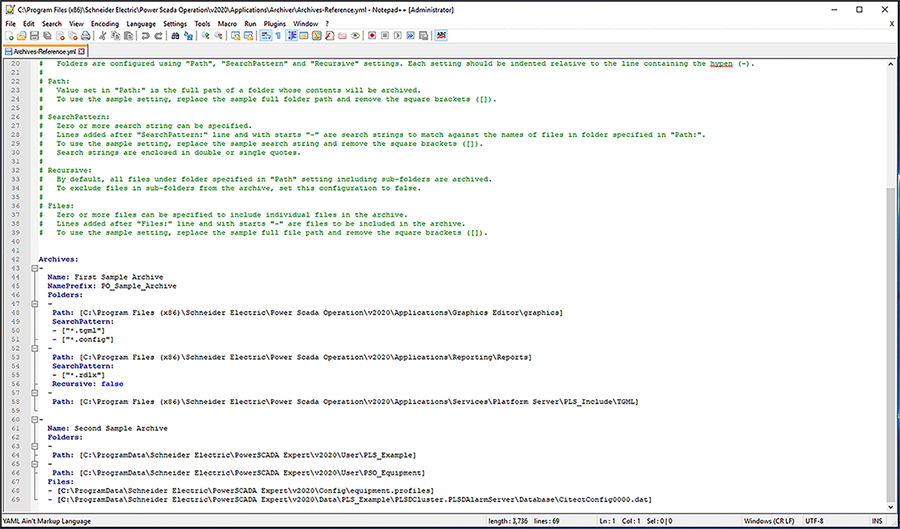
Define configuration settings for an archive package using:
-
The Archives.yml file in the Power Operations Applications program folder.
-
A text and source code editor, such as Notepad++.
Example configuration settings:
-
-
Verify backup name, path, search pattern, and location settings are correct in the in the YML file.
-
Open a command-line interpreter, such as Windows Command Prompt.
NOTE: You can also write a batch file or use Windows Task Scheduler.
-
At the command prompt, enter path to Archiver.exe and
pack -- helpto view available options.Example path and command:
C:\Program Files (x86)\Schneider Electric\Power Operation\v2022\Applications\Archiver.exe pack --helpto view available options. -
At the command prompt, enter a packing command for input and output using the desired folder paths.
Example packing command:
C:\Program Files (x86)\Schneider Electric\Power Operation\v2022\Applications\Archiver>Archiver.exe pack --configuration c:\input\pack\Archives.yml --output c:\restore\pack -
Enter password. Archiver packs backups into packages.
-
Look at packing results:
Packing result Action Archiver packed files successfully None Archiver failed to pack files Open the Log.txt file in the output folder and search for [WRN] indicating return of 0 file, and re-enter command line for packing. -
Store archived packages, containing manifest and backup files, for future use.
Restoring and unpackaging archived files
Run a command line utility before restoring an encrypted backup to verify it has not been tampered with or compromised. Information required for post-incident forensic activity, for example, audit logs, is included in the backup. This procedure can take up to 15 minutes to run depending on the size of the archive file.
Recommendations:
-
Follow restore tasks as described by your organization or contact your network administrator.
Required for this procedure:
-
Archive package with backup and manifest files in an accessible location.
-
Password for the archive package.
-
At the command prompt, enter a path to the manifest and a path to the desired output folder to the same command line.
Example command:
C:\Program Files (x86)\Schneider Electric\Power Operation\v2022\Applications\Archiver>Archiver.exe unpack -- manifest c:\input\packExample path:
--output c:\unpackbackups\ -
Check the toc.txt saved with your backup to verify the contents of the backup are what is wanted to restore before you unpackage. Open a command-line interpreter, such as Windows Command Prompt.
-
Select Tab. The manifest AES file is located and added to the command line.
-
Enter password. Archiver unpacks archived files.
-
Review unpacking results:
notice
UNINTENDED DATA LOSS OR LOSS OF SOFTWARE FUNCTION
● Only overwrite files and folders you are certain are from Power Operation with Advanced Reporting and Dashboards. ● Back-up important files from other software before overwriting Power Operation with Advanced Reporting and Dashboards. Failure to follow these instructions can result in irreversible damage to software and databases.
Packing result Action Archiver unpacked files successfully Restore files. Error Backup.aes will not be unpacked because it has been modified after it was originally archived. If any part of the package was tampered with, do not restore files and follow cybersecurity tasks as described by your organization or contact your network administrator. -
Open Power SCADA Studio.
-
Click Backup > Restore. The Backup Project dialog box opens.
-
Click Browse.
-
Select the CTZ backup file that contains the files you want to restore and click OK.